Introduction
Many students spend too much time working out mean standard deviation questions manually. While it is important to understand the concept, it is also helpful to know how to use a scientific calculator efficiently.
This mean standard deviation guide shows a simple calculator method that can save time and reduce mistakes. Once students know the correct steps, they can enter data quickly, check results confidently, and focus more on understanding the question.
The calculator method is especially useful when students are dealing with a list of data values and need both the mean and the standard deviation without taking forever.
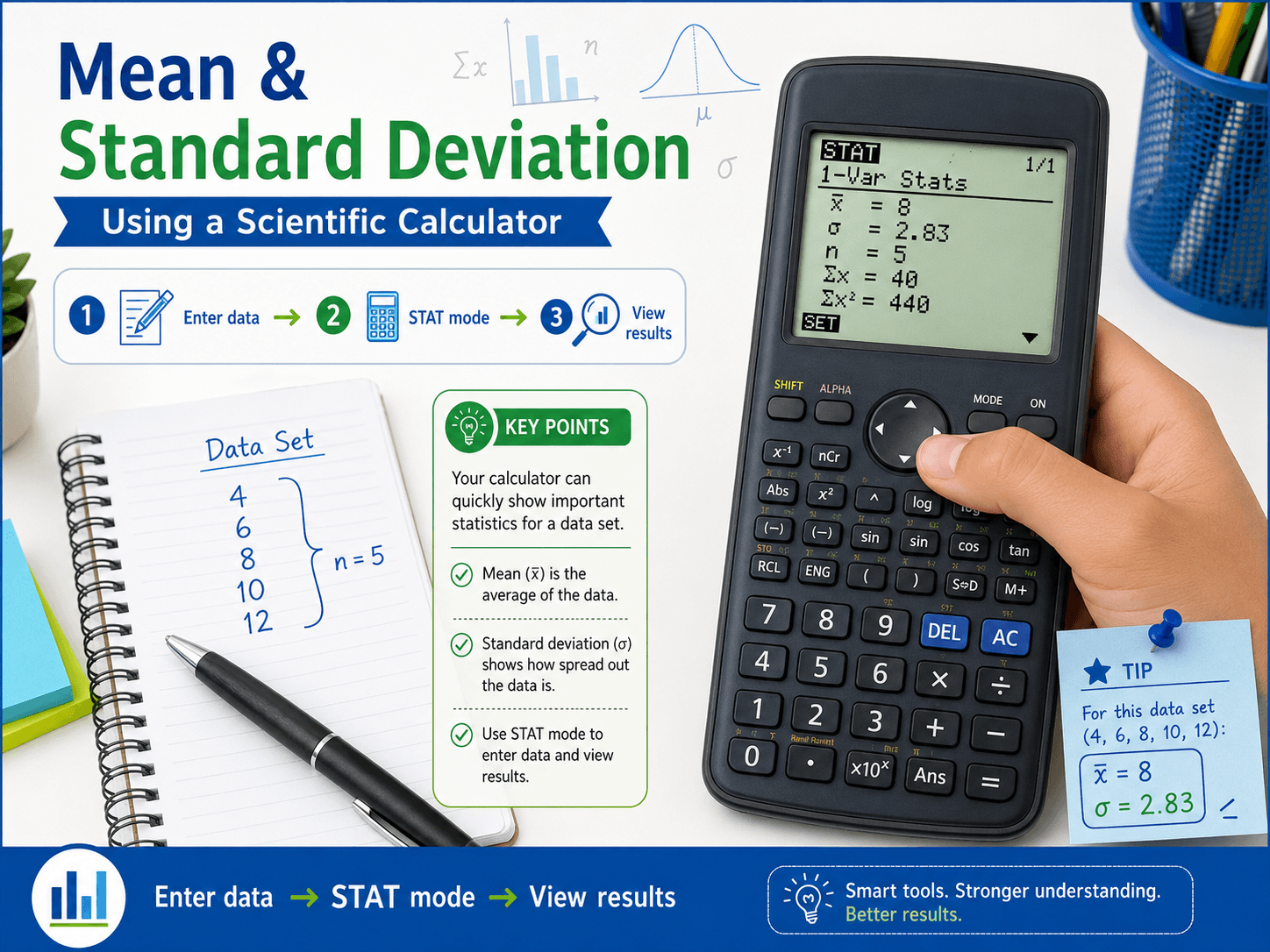
The Question / Scenario Explanation
Source: Mean and standard deviation don’t have to take forever
The screenshots show a Casio ClassWiz calculator being used to find the mean and standard deviation of a set of numbers. The example data shown is:
\( 12,\ 15,\ 18,\ 10,\ 20 \)
Instead of calculating everything by hand, the student enters the data into statistics mode and uses the calculator to display the results. This makes the mean standard deviation process faster and more accurate.
Step-by-Step Solution / Explanation
Step 1: Understand What Mean and Standard Deviation Mean
Before using the calculator, students should know what these terms represent.
- Mean is the average of the data values.
- Standard deviation shows how spread out the data values are from the mean.
For the data \( 12,\ 15,\ 18,\ 10,\ 20 \), the mean can be found by:
\( \bar{x} = \frac{12 + 15 + 18 + 10 + 20}{5} = \frac{75}{5} = 15 \)
The calculator helps students get this answer quickly and also gives the standard deviation at the same time.
Step 2: Open Statistics Mode
Press MODE or MENU on the calculator, then choose Statistics. After that, select 1-Variable if the question gives only one list of data values.
This is the correct mode for a basic mean standard deviation question involving one set of numbers.
Step 3: Enter the Data Values
Type the data values one by one into the calculator table.
For the example shown:
\( 12,\ 15,\ 18,\ 10,\ 20 \)
Each value should be entered carefully into a new row. Students must check that they do not skip any value or type a wrong number.
Step 4: Leave the Data Table and Open the Calculation Results
After entering all the data, press AC to leave the data table while keeping the values saved. Then press OPTN and choose the option for 1-Variable Calculation.
This will show the summary statistics for the data set.
Step 5: Read the Mean from the Calculator
The calculator will display the mean as \( \bar{x} \).
For this data set, the calculator gives:
\( \bar{x} = 15 \)
This matches the manual calculation:
\( \bar{x} = \frac{75}{5} = 15 \)
Step 6: Read the Standard Deviation from the Calculator
The calculator may show more than one type of standard deviation. Common displays include:
- \( \sigma_x \): population standard deviation
- \( s_x \): sample standard deviation
From the example shown, the calculator gives:
\( \sigma_x^2 = 13.6 \)
\( \sigma_x \approx 3.687817783 \)
\( s_x^2 = 17 \)
Depending on the question or syllabus, students may be asked for one particular form. They must read the question carefully and use the correct value.
Step 7: Know Why This Method Is Helpful
This method saves time, especially when the data set is longer. It also reduces arithmetic mistakes that can happen when students work out the mean and standard deviation by hand.
However, students should still understand what the numbers mean. The calculator is a tool, but good Maths understanding is still essential.
Key Concepts Students Must Know
- Mean is the average: Add all the values and divide by the number of values.
- Standard deviation measures spread: A larger standard deviation means the data is more spread out.
- Statistics mode is important: Students must use the correct calculator mode to get the right results.
- Different standard deviations may appear: The calculator may show both \( \sigma_x \) and \( s_x \).
- Calculator use should support understanding: Students should know what the results represent, not just copy them blindly.
Exam Tips / Common Mistakes
Exam Tips
- Check the calculator mode before entering data.
- Enter each value carefully and review the list once before calculating.
- Know whether the question wants the mean only or the standard deviation as well.
- Look carefully at whether the calculator shows \( \sigma_x \) or \( s_x \).
- Round your final answer only when needed, according to the question instructions.
Common Mistakes
- Typing a wrong data value into the table.
- Selecting the wrong calculator mode.
- Using the wrong standard deviation value.
- Clearing the data accidentally before reading the results.
- Trusting the calculator without checking whether the answer makes sense.
For mean standard deviation questions, careful input is just as important as knowing the calculator steps. A fast method only helps when it is used accurately.
Parent Insight
Some parents feel concerned when they see their child depending on a calculator. In reality, calculators can be very helpful when used properly. The key is to make sure students first understand the concept, then use the calculator to work more efficiently.
When students know both the meaning and the method, they become more confident and less likely to panic during timed practice or exams. Parents can support this by asking simple questions such as:
- “What does the mean tell you about the data?”
- “What does standard deviation show?”
- “Did you check that you entered all the numbers correctly?”
This helps students build both calculator skills and concept understanding at the same time.
Conclusion
Mean standard deviation questions do not have to take forever. With the right calculator steps, students can enter data quickly, find the mean accurately, and read the standard deviation with greater confidence.
The most important things are to use the correct statistics mode, enter the data carefully, and understand what each result means. When students combine good understanding with smart calculator use, they become faster and more accurate problem-solvers.
Visit our homepage: Click Here…
Read more on our blog: Click Here…
Start here (limited slots weekly):
Free Trial: Click Here…
Enroll: Click Here…
Explore our main tuition brand approach here: Click Here… .